SAMBA AND YOU: A BRIEF TUTORIAL
For my first Honors project with Ms. Lopez-Martell, I decided to create a tutorial on Samba, a ubiquitous Linux tool that enables sharing of files over Windows's SMB protocol. This makes it discoverable by Windows machines, allowing easy transfer of files between it and a client Windows computer.
STEP 1: INSTALL AND CONFIGURE SAMBA
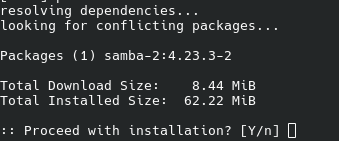
I'll be using Arch Linux, so I'm installing Samba using the distribution's pacman package manager (sudo pacman -S samba). Install the package using whatever package manager your distro has.

Next, you need to create a folder to share. I've created one called "sambashare" in my home directory for this demonstration.
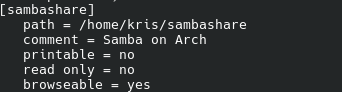
The last bit of directory configuration required is to tell Samba the actual shared directory you want it to point to. Editing /etc/samba/smb.conf (or creating it based on this default config from Samba's git repository), point to the directory and configure it to be writeable and browseable, as shown above.
STEP 2: SET UP USER(S) AND ACTIVATE SAMBA

The SMB standard requires a user and credentials to connect to. Windows normally just uses the user accounts associated with the machine for access control in this manner, but Samba keeps an independent ledger of valid users you need to manually add to. Use the smbpasswd command (sudo smbpasswd -a [name]) to create a user or users for the Windows machine(s) to access the share as.
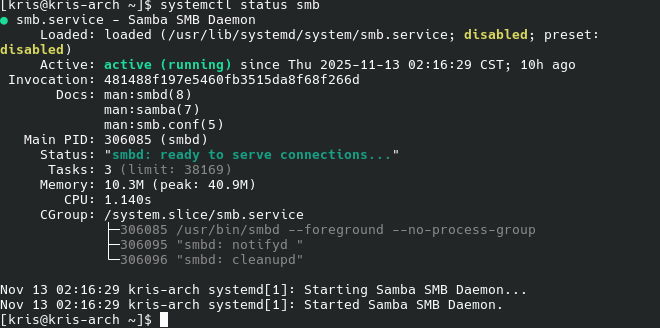
Now that you have set up the users you need, we need to launch or relaunch the Samba daemon. On systemd-based distros like Arch, you can use the command "sudo systemctl start smb.service" on Arch to accomplish this; if it is already running, substitute "restart" in place of "start" and try again, allowing the Samba daemon to load the updated configuration file. Keep in mind, once again, that exact details will depend on your distribution's init software and default Samba installation parameters.
STEP 3: SIGN IN TO SAMBA SHARE FROM WINDOWS
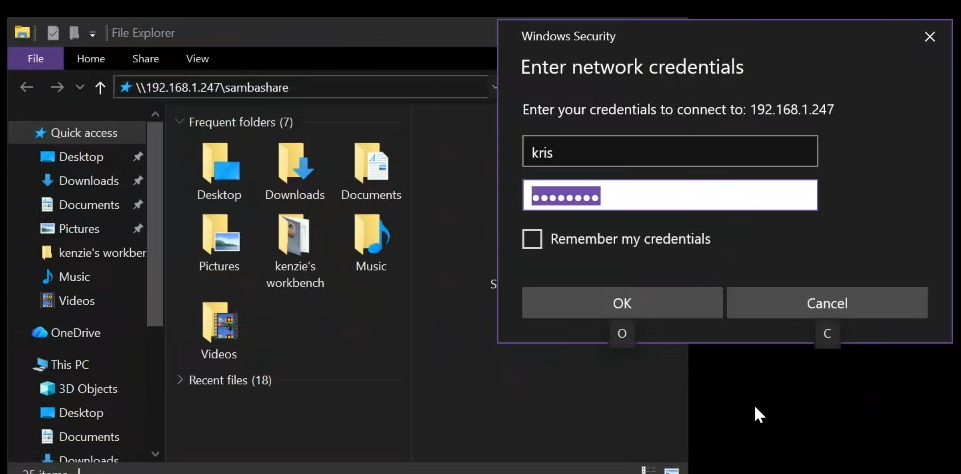
From a Windows machine, open Explorer. Click on the address/location bar and search "\\[XXX.XXX.X.XX]\[sharename]", substituting the Linux machine's IP and the Samba share's name as appropriate. The share is accessible by the name you gave it in the smb.conf file, and if you don't know your machine's local IP, you can log in to your router to find it. Log in using the credentials you set up earlier.
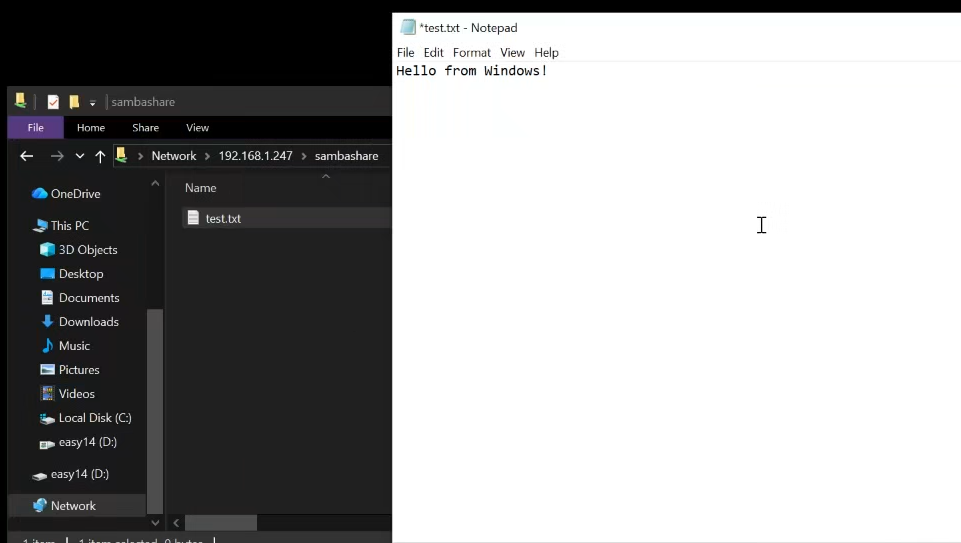
To demonstrate that it's a writeable directory from the perspective of the connected machine, I've created a text file in the share. Let's see if it shows up on the Linux end.
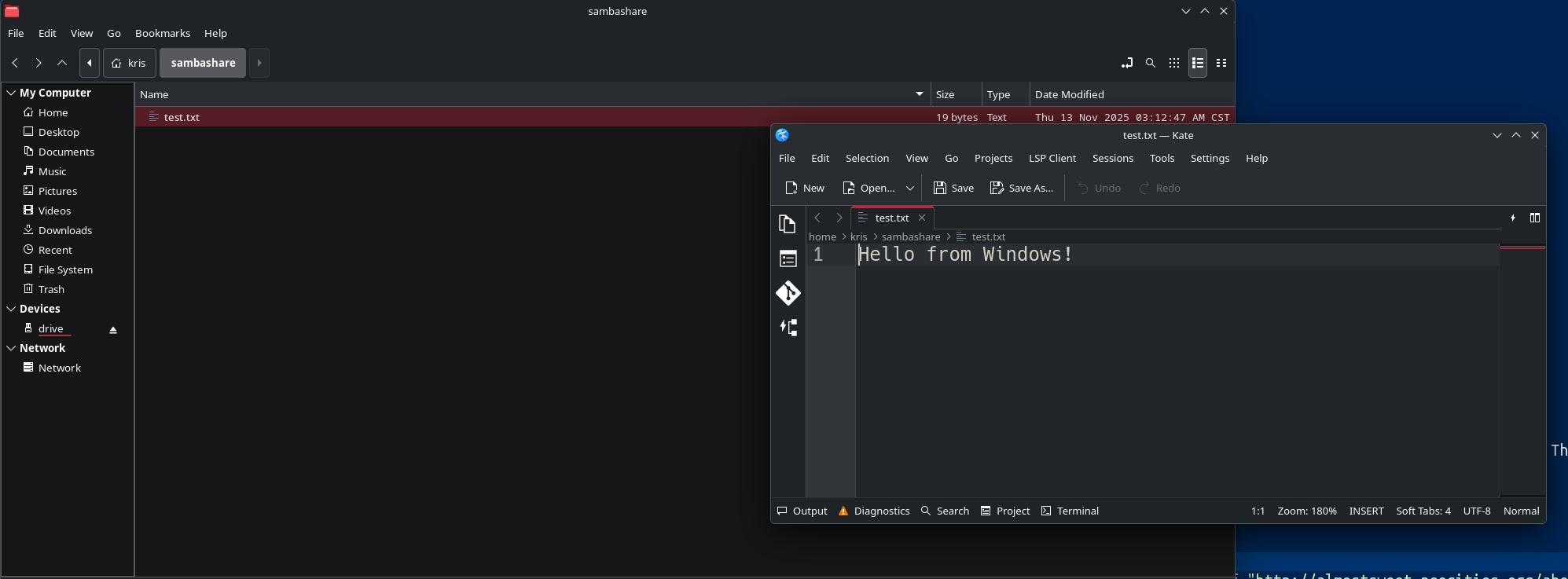
Success! I've managed to create a file in the shared directory with mutual read/write permissions between server and client.
I had quite a bit of fun with this project, and learned a good few things, to wit:
- Sane default configurations and best practices for using Samba
- Accessing and signing in to Windows network folders
- Managing and configuring systemd components/daemons
I feel I have benefitted a lot from the learning experience, bolstering my knowledge of Linux and Windows systems alike. I hope to engage more projects like this in the near future.